QRKude for Arduino
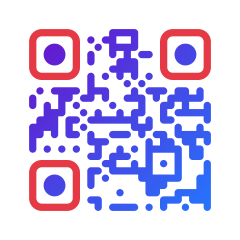
An Arduino library that draws styled QR codes on displays, prints them on the serial port and streams them as SVG images. It is part of QRKude, a set of libraries that produce the same styled QR codes in C, Arduino, ESP-IDF, LVGL, JavaScript, Python, Rust, Dart and Qt.
Status and installation
QRKude is pre-release (version 0.1.0). It is not yet in the Arduino Library Manager or the PlatformIO Registry. Install it from a clone of the QRKude repository. The library needs no other library; the display examples need their display library (TFT_eSPI, Adafruit SSD1306, LVGL…).
The folder packages/arduino does not contain the C core of QRKude, so it is
not a complete library by itself. A script assembles the complete library
(Python 3, no extra modules):
python3 packages/arduino/tools/package.py --zipThis writes the library to dist/arduino/QRKude/ and a zip file to
dist/QRKude-arduino-0.1.0.zip. Run it again after you update your clone.
Arduino IDE. Sketch > Include Library > Add .ZIP Library… and choose
dist/QRKude-arduino-0.1.0.zip. The examples then appear under
File > Examples > QRKude.
PlatformIO. Point lib_deps at the assembled folder (use your absolute
path):
[env:esp32dev]
platform = espressif32
board = esp32dev
framework = arduino
lib_deps = symlink:///home/you/qrkude/dist/arduino/QRKude
Arduino CLI. arduino-cli compile --library dist/arduino/QRKude ...
Once published, the library will be installed from the Library Manager
(search for “QRKude”) or with lib_deps = QRKude in PlatformIO.
Quick start
This sketch needs no wiring. It prints a QR code in the serial monitor, then
the same code as an SVG image. It runs on 32-bit boards (ESP32, ESP8266,
RP2040, SAMD…) and on the Arduino Mega. An Uno or Nano is too small for the
SVG part: open the BasicSerial example instead, which prints only the text
version on those boards.
#include <QRKude.h>

QRKude qr;

void setup() {
    Serial.begin(115200);
    while (!Serial) {
    }
    qr.setModules(QRK_MODULE_DOT, 0.9);          // round dots instead of squares
    qr.setEyes(QRK_EYE_ROUNDED, QRK_EYE_CIRCLE); // the three corner markers
    if (!qr.encode("https://kudelink.com")) {
        Serial.println(qr.errorString());
        return;
    }
    qr.printAscii(Serial, QRKude::ASCII_HALF_BLOCKS, true);
    qr.printSvg(Serial);
}

void loop() {
}
Open the serial monitor at 115200 baud. You see the code drawn with block
characters: point a phone camera at the screen and it opens the link. The
text version shows the plain grid; the style (dots, round eyes) appears in
the SVG document printed after it. Copy that text from <svg to </svg>
into a file named qr.svg and open it in a web browser.
The last argument of printAscii() (true) swaps light and dark, which is
right for monitors with light text on a dark background. If the monitor
cannot show the block characters, use QRKude::ASCII_HASH.
The library comes with six examples (File > Examples > QRKude in the
Arduino IDE, examples/ in the folder):
| example | hardware | shows |
|---|---|---|
BasicSerial |
any board | text and SVG on the serial port (text only on Uno and Nano) |
TFT_eSPI_Styled |
color TFT with TFT_eSPI | five styles in turn, lint warnings, timing |
Adafruit_SSD1306_Mono |
128x64 I2C OLED | drawMono() |
ESP32_WebServer_SVG |
ESP32 or ESP8266 | a web page and /qr.svg?text=...&shape=... |
LVGL_Widget |
TFT_eSPI display and LVGL 9 or 8.3 | the lv_qrkude widget |
LogoFromFlash |
color TFT with TFT_eSPI | a logo stored as an RGB565 array |
New to QR codes? Read the guide.
Styling
A style describes how the code looks: the shape of the modules (the small squares of the grid), the eyes (the three big corner markers), colors, background, a logo area and a text label. You can set it in two ways. Both give the same result, and the visual reference docs/STYLES.md shows every option.
In C++, through shortcuts or the fields of qr.style() (a qrk_style):
| shortcut | field(s) | meaning |
|---|---|---|
setModules(shape, size, roundness) |
modules.shape, .size, .roundness |
module shape: QRK_MODULE_SQUARE, _DOT, _ROUNDED, _DIAMOND, _STAR, _FLUID, _LIQUID, _BEVEL, _CLASSY, _HBARS, _VBARS |
setEyes(frame, ball) |
eyes.frame, eyes.ball |
eye shapes: QRK_EYE_SQUARE, _ROUNDED, _CIRCLE, _LEAF, _DROP, _BEVEL, _DIAMOND, _DOTS |
setColors(fg, bg) |
modules.paint, background.paint |
solid colors |
setMargin(m) |
margin |
quiet zone: the empty border, in modules (4 is the standard) |
eyes.frame_paint, eyes.ball_paint |
eye colors (default: same as the modules) | |
alignment.frame, alignment.ball |
alignment patterns, the small inner markers | |
background.radius, border.width, border.color |
background and border | |
logo.size, .margin, .shape, .excavate, .background |
logo area in the middle | |
label.text, .size, .color, .position, .bold |
label (SVG output only) |
Colors are written 0xRRGGBBAA. Use QRK_HEX(0x1B3A5C) for an opaque color,
QRK_RGBA(r, g, b, a) for one with transparency, and
QRKude::fromRGB565(TFT_RED) to reuse a display library’s color. A paint is a
solid color or a gradient: qrk_paint_solid(color),
qrk_paint_linear(angle, from, to), qrk_paint_radial(center, edge); see
colors and gradients.
In JSON, with the style document shared by every QRKude library. A document written for the web version works here unchanged.
Example 1, brand colors set in C++ (connected modules with a gradient):
qr.setModules(QRK_MODULE_FLUID);
qr.style().modules.paint = qrk_paint_linear(45, QRK_HEX(0x6A11CB), QRK_HEX(0x2575FC));
qr.setEyes(QRK_EYE_ROUNDED, QRK_EYE_CIRCLE);
qr.style().eyes.frame_paint = qrk_paint_solid(QRK_HEX(0xE63946));
qr.style().background.radius = 3; // rounded corners, in modules
qr.encode("https://kudelink.com");
Example 2, the same kind of style from JSON (escaped quotes, because the Arduino IDE handles plain string literals best):
bool ok = qr.setStyleJson(
    "{\"modules\":{\"shape\":\"dot\",\"size\":0.9,\"color\":\"#2b8a3e\"},"
    "\"eyes\":{\"frame\":\"leaf\",\"ball\":\"leaf\",\"ballColor\":\"#e8590c\"},"
    "\"background\":{\"color\":\"#ffffff\"}}");
if (!ok) {
    Serial.println(qr.errorString()); // e.g. "parse error"
}
qr.encode("https://kudelink.com");
setStyleJson() starts from the default style; applyStyleJson() changes
only the keys present in the document. Both also read the "encode" and
"svg" sections (encoding options,
SVG options). On an error nothing changes.
Example 3, a logo. The style reserves an area in the middle; on displays you
also give the picture to draw there, as a C array made from a PNG or JPG file
by img2qrk.py (in extras/ of the library):
python3 img2qrk.py logo.png -n qrkude_logo -f RGB565 -s 32 -o logo.h#include "logo.h"
qr.setStyleJson("{\"logo\":{\"size\":0.2,\"margin\":0.5,\"shape\":\"rounded\","
"\"background\":\"#ffffff\"}}");
qr.setLogo(qrkude_logo); // the picture, used by draw() and renderBuffer()
qr.encode("https://kudelink.com");A logo hides part of the code. QRKude then raises the error correction (the
share of the code that may be missing while it still scans) to the highest
level, H. Check the result with logoDamage(), see
Making sure it scans and the
guide on logos. img2qrk.py formats: RGB565,
RGB565_SWAPPED, RGBA8888 (keeps transparency), BGRA8888, RGB888,
GRAY8 and MONO (1 bit per pixel, 8 times smaller than RGB565). Option
-c TEXT adds a line to the header comment, -b #rrggbb sets the color
behind transparent pixels.
Labels (label.text) appear only in the SVG output: drawing text needs fonts,
which the display output does not have. Print the text with your display
library instead.
Output
Every output uses the last encoded code with the current style. Call
encode() again after changing the style if the change affects the logo
area (it may change the error correction).
Color displays
draw(display, x, y, size) draws the code in a square of size pixels with
its top-left corner at (x, y), scaled to fit and centered.
draw(display, x, y, width, height) uses a rectangle. It works with any
display class that has one of these methods, found when the sketch compiles:
| display library | method used | colors |
|---|---|---|
| Adafruit_GFX displays (ILI9341, ST7789, SSD1351…) | startWrite, writeFastHLine, endWrite |
RGB565 |
| LovyanGFX | startWrite, writeFastHLine, endWrite |
RGB565 (uint16_t) |
| Arduino_GFX | startWrite, writeFastHLine, endWrite |
RGB565 |
| TFT_eSPI | startWrite, drawFastHLine, endWrite |
RGB565 |
| any other class | drawFastHLine(x, y, w, color) |
RGB565 |
RGB565 is the 16-bit color format of most small color displays.
#include <QRKude.h>
#include <SPI.h>
#include <TFT_eSPI.h>

TFT_eSPI tft;
QRKude qr;

void setup() {
    tft.init();
    tft.fillScreen(TFT_BLACK);
    qr.setModules(QRK_MODULE_FLUID);
    qr.setEyes(QRK_EYE_ROUNDED, QRK_EYE_CIRCLE);
    qr.setClearColor(QRKude::fromRGB565(TFT_BLACK)); // blend smoothed edges into the screen
    qr.encode("https://kudelink.com");
    qr.draw(tft, 20, 40, 200);
}

void loop() {
}
Drawing options:
setSupersample(n)smooths edges:nsamples per pixel and axis, 1 (off) to 4, default 2.setIntegerScale(true)(default) gives every module the same whole number of pixels. Edges are sharp and scanners like it; the code may not fill the whole square.setClearColor(color)is the color behind transparent parts and around the code (default white). Set it to your screen’s background color. WithQRK_TRANSPARENT,draw()leaves those pixels as they are.
Monochrome displays (OLED)
drawMono(display, x, y, size, dark, light, threshold) draws in two colors:
pixels darker than threshold (0-255, default 128) get dark, the others
light. The defaults (dark = 0, light = 1) suit SSD1306 OLEDs: dark
modules stay unlit on a lit background, the way scanners expect them. It
works with drawFastHLine displays (Adafruit_SSD1306 and other
Adafruit_GFX displays) and with U8g2 (setDrawColor + drawHLine).
#include <Adafruit_GFX.h>
#include <Adafruit_SSD1306.h>
#include <QRKude.h>
#include <Wire.h>

Adafruit_SSD1306 display(128, 64, &Wire, -1);
QRKude qr(4); // versions 1 to 4 are plenty for a 64-pixel display

void setup() {
    display.begin(SSD1306_SWITCHCAPVCC, 0x3C);
    display.clearDisplay();
    qr.setMargin(2); // a 2-module quiet zone saves pixels and still scans
    qr.encode("https://kudelink.com");
    qr.drawMono(display, 0, 0, 64);
    display.display();
}

void loop() {
}
How big to draw it
Aim for at least 3 to 4 pixels per module. Two pixels can still work on a
small OLED held close to the phone. The code occupies size() modules plus
the margin on each side:
pixels per module = floor(drawing size / (size() + 2 x margin))| drawing size | text up to 26 bytes (version 2, 25 modules) | up to 62 bytes (version 4, 33 modules) |
|---|---|---|
| 64 px, margin 2 | 2 px (the minimum) | 1 px (too small) |
| 128 px, margin 2 | 4 px | 3 px |
| 240 px, margin 4 | 7 px | 5 px |
Shorter text gives a smaller version and bigger modules: use short URLs on small screens. More in the guide: versions and capacity and size in print and on screen.
Pixel buffers and custom outputs
renderBuffer(pixels, width, height, format) fills a buffer of
qrk_pixel_buffer_size(format, width, height) bytes. Formats:
QRK_PIXEL_RGB565, QRK_PIXEL_RGB565_SWAPPED (byte order of most SPI
displays), QRK_PIXEL_RGB888, QRK_PIXEL_RGBA8888, QRK_PIXEL_BGRA8888,
QRK_PIXEL_GRAY8, QRK_PIXEL_MONO (1 bit per pixel, 1 = dark).
renderSpans(width, height, fn) calls fn(x, y, len, color) for each
horizontal run of equal pixels, row by row, without any buffer:
static uint16_t row[240];
qr.renderSpans(240, 240, [](int x, int y, int len, qrk_color color) {
    for (int i = 0; i < len; i++)
        row[x + i] = QRKude::toRGB565(color);
    if (x + len == 240) {
        // row y is complete: send row[] to the display here
    }
});
SVG
SVG is a vector image format that browsers display at any size. QRKude writes the same SVG, byte for byte, in every language.
printSvg(out)streams it to anyPrint:Serial, aWiFiClient, an SD cardFile. The library writes in chunks of 128 bytes (32 on AVR).svgLength()gives its length first, for an HTTPContent-Length.svgToBuffer(buf, cap)andwriteSvg(callback, user)write elsewhere.svgOptions().widthsets the size attribute in pixels;svgOptions().id_prefixkeeps gradient names apart when one web page shows several codes.
A web server handler (ESP32 WebServer; the ESP32_WebServer_SVG example is
complete):
void handleSvg() {
    QRKude qr; // freed when the function returns
    if (!qr.encode(server.arg("text"))) {
        server.send(400, "text/plain", qr.errorString());
        return;
    }
    server.setContentLength(qr.svgLength());
    server.send(200, "image/svg+xml", "");
    WiFiClient client = server.client();
    qr.printSvg(client);
}
Text
printAscii(out, style, invert, margin) prints the grid for a serial
monitor: QRKude::ASCII_HALF_BLOCKS (2 rows per line, the most compact),
ASCII_FULL_BLOCKS or ASCII_HASH (plain ##). writeAscii() does the
same through a callback.
LVGL
The library also contains the lv_qrkude widget for the LVGL graphics
library. It is compiled only when LVGL is installed. See
packages/lvgl and the LVGL_Widget example.
Content helpers
These functions build the text that phone cameras recognize, with the right escaping, and encode it:
qr.encodeWifi("MyNetwork", "secret", "WPA");   // join a Wi-Fi network
qr.encodeEmail("[email protected]", "Hello", "Sent from a QR code");
qr.encodeSms("+34600000000", "Hi");
qr.encodeTel("+34600000000");
qr.encodeGeo(40.4168, -3.7038);                 // a map location

qrk_vcard card = {};                            // a contact
card.first_name = "Ada";
card.last_name = "Lovelace";
card.email = "[email protected]";
qr.encodeVCard(card);

qrk_event event = {};                           // a calendar event
event.summary = "Maker meetup";
event.start = "20261107T180000Z";
event.end = "20261107T200000Z";
qr.encodeEvent(event);
encodeWifi() takes "WPA" (also for WPA2 and WPA3), "WEP" or "nopass",
and an optional fourth argument true for hidden networks. Fields left
NULL in qrk_vcard and qrk_event are left out. To build the text into
your own buffer, use the C functions qrk_payload_wifi(), _email(),
_sms(), _tel(), _geo(), _vcard() and _event(). More in the guide:
what you can put in a QR code.
Making sure it scans
Strong styling can make a code hard to read. After encode(), lint()
returns warnings as bit flags (0 = none) and logoDamage() tells how much of
the error correction the logo area uses:
uint32_t warnings = qr.lint();
for (uint32_t flag = 1; flag <= QRK_LINT_INVISIBLE; flag <<= 1) {
    if (warnings & flag) {
        Serial.print("warning: ");
        Serial.println(QRKude::lintName(flag));
    }
}
Serial.print("logo damage: ");
Serial.println(qr.logoDamage(), 2); // 0 = no logo, keep it below 0.6| flag | name | what to do |
|---|---|---|
QRK_LINT_LOGO_RISKY |
logo-risky |
logo damage above 0.7: make the logo (logo.size, logo.margin) smaller or the text shorter |
QRK_LINT_LOGO_UNREADABLE |
logo-unreadable |
logo damage above 1: the code cannot be read; same fixes |
QRK_LINT_LOW_CONTRAST |
low-contrast |
modules and background are too alike: darken the modules or lighten the background |
QRK_LINT_INVERTED |
inverted |
light modules on a dark background: many scanners fail; swap the colors |
QRK_LINT_TRANSPARENT_BACKGROUND |
transparent-background |
no background: fine only on a light surface; set background |
QRK_LINT_QUIET_ZONE |
quiet-zone |
margin below 2 modules: increase margin |
QRK_LINT_SMALL_MODULES |
small-modules |
modules.size below 0.6: make the dots or squares bigger |
QRK_LINT_EYE_SHAPES |
eye-shapes |
a diamond eye that scanners reject: use another frame or ball shape |
QRK_LINT_INVISIBLE |
invisible |
modules or eyes have no visible color (transparent): give them a color |
Logo damage is the share of the error correction used up by the hidden area. Below 0.6 is comfortable; above 1 the code cannot be decoded. Always test with a few phones, at the real size: see styling without breaking scanning, colors and contrast, testing your codes and troubleshooting.
Untrusted styles
When styles or payloads arrive from outside (a web form, Wi-Fi, BLE, MQTT), the library protects itself:
- Unknown keys are ignored. Nesting deeper than 64 objects or arrays, a
number longer than 400 characters and a number that is not finite (such as
1e999) are parse errors. setStyleJson()andapplyStyleJson()change nothing on any error.- Strings are copied; text written into the SVG (label, logo URL) is escaped,
and
svg.idPrefixkeeps onlyA-Z,a-z,0-9,_and-(other characters become_). - Encoding never writes past the object’s buffer: data longer than
maxVersion()allows fails withQRK_ERR_DATA_TOO_LONG, and"encode": {"maxVersion": ...}is capped atmaxVersion().
What stays your job:
- Limit the length of the JSON and of the text before calling the library.
setStyleJson()allocates the JSON length plus about 800 bytes temporarily, and the parser uses about 1.5 KB of stack on ESP32. - A valid style can still be unreadable (white on white, a huge logo). Run
lint()and reject styles with warnings you do not accept. logo.hrefmay point to any URL. Browsers that show your SVG will load it; clearstyle().logo.hrefif you do not want that.
Error codes, from status() (text from errorString()):
| status | text | cause |
|---|---|---|
QRK_ERR_PARSE |
parse error | malformed JSON, unknown shape or color name, limits above |
QRK_ERR_INVALID_ARGUMENT |
invalid argument | an option out of range when encoding, e.g. "minVersion": 0, or a NULL argument |
QRK_ERR_DATA_TOO_LONG |
data too long | the text does not fit maxVersion() (or encode.maxVersion) |
QRK_ERR_OUT_OF_MEMORY |
out of memory | heap allocation failed |
QRK_ERR_BUFFER_TOO_SMALL |
buffer too small | the buffer given to QRKude(buffer, size) cannot hold even version 1 |
API reference
All of the C API in qrkude.h (qrk_* functions and types, see
core/README.md) is available too. The QRKude class:
Construction
QRKude(uint8_t maxVersion = QRKUDE_DEFAULT_MAX_VERSION) |
codes up to maxVersion; the first encode() allocates QRKUDE_BUFFER_SIZE(maxVersion) bytes |
QRKude(void *buffer, size_t size) |
uses your buffer instead of the heap; the largest version that fits is used |
~QRKude() |
frees the heap memory |
Style
qrk_style &style() (and const) |
the style, for direct changes |
void resetStyle() |
back to the default style |
bool setStyleJson(const char *json), (json, len) |
replace style and options from JSON |
bool applyStyleJson(const char *json), (json, len) |
change only the keys in the JSON |
void setColors(qrk_color fg, qrk_color bg) |
solid module and background colors |
void setModules(qrk_module_shape shape, double size = 1, double roundness = 1) |
module shape |
void setEyes(qrk_eye_shape frame, qrk_eye_shape ball) |
eye shapes |
void setMargin(double modules) |
quiet zone |
void setLogo(const qrk_image *logo), setLogo(const qrk_image &logo) |
picture for the logo area (raster outputs) |
Encoding
qrk_encode_opts &encodeOptions() |
ecc, min_version, max_version, mask, boost_ecc, eci |
void setEcc(qrk_ecc ecc) |
minimum error correction: QRK_ECC_LOW, _MEDIUM, _QUARTILE, _HIGH |
void setAutoEcc() |
QRK_ECC_AUTO (default): H with a logo, M otherwise |
bool encode(const char *text), (const uint8_t *data, size_t len), (const String &text) |
encode text or bytes |
bool encodeWifi(ssid, password, auth = "WPA", hidden = false) |
Wi-Fi network |
bool encodeEmail(to, subject = NULL, body = NULL) |
|
bool encodeSms(number, message = NULL) |
text message |
bool encodeTel(number) |
phone call |
bool encodeGeo(latitude, longitude) |
map location |
bool encodeVCard(const qrk_vcard &card) |
contact |
bool encodeEvent(const qrk_event &event) |
calendar event |
Result and checks
bool valid() |
the last encode() succeeded |
const qrk_code *code() |
the code for the C API, or NULL |
int version(), int size(), qrk_ecc ecc(), int mask() |
version 1-40, modules per side, error correction used, mask 0-7 |
bool module(int x, int y) |
true = dark module |
uint32_t lint() |
QRK_LINT_* warning flags |
double logoDamage() |
0 = no logo, above 1 = unreadable |
static const char *lintName(uint32_t flag) |
name of one flag |
qrk_status status(), const char *errorString() |
result of the last call that can fail |
uint8_t maxVersion() |
largest version this object accepts |
bool layout(qrk_layout &out) |
canvas size, grid position, logo box, in modules |
Drawing and raster output
bool draw(display, x, y, size), draw(display, x, y, width, height) |
color displays, RGB565 |
bool drawMono(display, x, y, size, dark = 0, light = 1, threshold = 128) |
two-color displays |
bool renderSpans(width, height, fn) (any callable), (width, height, qrk_span_fn fn, void *user) |
runs of equal pixels |
bool renderBuffer(pixels, width, height, qrk_pixel_format format, size_t stride = 0) |
pixel buffer |
void setSupersample(int samples) |
smoothing, 1-4 (default 2) |
void setIntegerScale(bool on) |
whole pixels per module (default true) |
void setClearColor(qrk_color color) |
color behind and around the code (default white) |
SVG and text
size_t printSvg(Print &out) |
stream the SVG |
size_t svgLength() |
its length in bytes |
size_t svgToBuffer(char *buf, size_t cap) |
into a buffer, returns the full length |
size_t writeSvg(qrk_write_fn fn, void *user) |
through a callback |
qrk_svg_opts &svgOptions() |
width, id_prefix |
size_t printAscii(Print &out, AsciiStyle style = ASCII_HALF_BLOCKS, bool invert = false, uint8_t margin = 2) |
text grid |
size_t writeAscii(qrk_write_fn fn, void *user, style, invert, margin) |
text grid through a callback |
enum AsciiStyle: ASCII_HALF_BLOCKS, ASCII_FULL_BLOCKS, ASCII_HASH |
text styles |
Color helpers (static)
uint16_t toRGB565(qrk_color c) |
to a display color |
qrk_color fromRGB565(uint16_t c) |
from a display color |
uint8_t luminance(qrk_color c) |
brightness 0-255 |
Macros
QRKUDE_BUFFER_SIZE(version) |
bytes needed for codes up to version (constant expression) |
QRKUDE_DEFAULT_MAX_VERSION |
constructor default: QRK_MAX_VERSION, 4 on AVR; define it to change |
QRKUDE_PRINT_CHUNK |
bytes per Print::write() in printSvg/printAscii (128, 32 on AVR) |
QRKUDE_HAS_PRINT |
defined when Arduino’s Print is available |
QRK_MAX_VERSION |
largest version of the whole build (default 40); a build flag |
QRK_HEX(rgb), QRK_RGB(r, g, b), QRK_RGBA(r, g, b, a), QRK_TRANSPARENT |
colors |
QRK_LINT_* |
warning flags, see Making sure it scans |
The library also contains lv_qrkude.h (the LVGL widget, see
packages/lvgl) and extras/img2qrk.py (logo converter).
Platform notes
The examples compile for these boards (PlatformIO, test/ci.sh; the Arduino
IDE’s compiler, checked with arduino-cli, gives the same sizes for the Uno and
the Mega). They have been run on a PC with simulated displays
(see Development), not yet on the boards themselves. RAM is
static memory, before the heap. Compared with an empty sketch, BasicSerial
(encoding, text and SVG output) adds about 27 KB of flash on ESP32 and 33 KB
on SAMD21; drawing on a display adds the rasterizer.
| board | example | flash (bytes) | RAM (bytes) |
|---|---|---|---|
| ESP32 (esp32dev) | BasicSerial | 293,725 | 22,356 |
| ESP32 | ESP32_WebServer_SVG | 814,565 | 45,084 |
| ESP32 | TFT_eSPI_Styled | 330,089 | 22,672 |
| ESP32 | Adafruit_SSD1306_Mono | 322,625 | 22,844 |
| ESP32 | LogoFromFlash | 332,185 | 22,664 |
| ESP32 | LVGL_Widget, LVGL 9.6 | 606,717 | 32,096 |
| ESP32 | LVGL_Widget, LVGL 8.3 | 505,573 | 32,808 |
| ESP8266 (d1_mini) | BasicSerial | 294,195 | 30,780 |
| ESP8266 | ESP32_WebServer_SVG | 337,851 | 30,980 |
| SAMD21 (Arduino Zero) | BasicSerial | 45,164 | 3,888 |
| SAMD21 | Adafruit_SSD1306_Mono | 56,844 | 4,604 |
| RP2040 (Pico, Arduino Mbed core) | BasicSerial | 98,885 | 39,804 |
| RP2040 | TFT_eSPI_Styled | 131,592 | 40,092 |
| Arduino Mega 2560 | BasicSerial | 34,896 | 1,900 |
| Arduino Mega 2560 | Adafruit_SSD1306_Mono | 46,778 | 1,517 |
| Arduino Uno | BasicSerial (text only) | 12,654 of 32,256 | 1,432 of 2,048 |
| Arduino Uno | same, -DQRK_MAX_VERSION=3 -DQRK_NO_MALLOC |
12,234 | 1,420 |
Memory used by one QRKude object:
| what | size |
|---|---|
| the object itself (it holds the style) | 888 bytes on ESP32, 442 on AVR |
code and encoder work area (heap, from the first encode()) |
QRKUDE_BUFFER_SIZE(maxVersion), table below |
setStyleJson(), encodeXxx() helpers |
temporary heap: JSON length + about 800 bytes; payload length |
drawing and renderXxx() (stack) |
about 2.6 KB on ESP32, 1.8 KB on AVR |
printSvg(), printAscii() (stack) |
under 1 KB |
| version | modules per side | QRKUDE_BUFFER_SIZE |
bytes of text (ECC M / L / H) |
|---|---|---|---|
| 2 | 25 | 163 | 26 / 32 / 14 |
| 3 | 29 | 218 | 42 / 53 / 24 |
| 4 | 33 | 281 | 62 / 78 / 34 |
| 6 | 41 | 427 | 106 / 134 / 58 |
| 10 | 57 | 819 | 213 / 271 / 119 |
| 20 | 97 | 2361 | 666 / 858 / 382 |
| 40 | 177 | 7841 | 2331 / 2953 / 1273 |
Ways to use less memory:
QRKude qr(6);limits one object to version 6.static uint8_t buf[QRKUDE_BUFFER_SIZE(4)]; QRKude qr(buf, sizeof buf);uses no heap for the code, and the build report shows the real RAM use.- The build flag
-DQRK_MAX_VERSION=10lowers the limit for the whole program.-DQRK_NO_MALLOCremoves the C core’s ownmalloc(the class always passes its buffer, so nothing changes for it).
AVR (Uno, Nano, Mega). The default maxVersion is 4. An Uno or Nano
(2 KB RAM, 32 KB flash) can encode and print text codes: BasicSerial skips
its SVG part there. On AVR the SVG writer needs about 12 KB more flash and its
texts are copied to RAM, and drawing needs about 1.8 KB of stack, so SVG and
displays need a Mega 2560 or a 32-bit board.
ESP8266, AVR. const data such as logo arrays is copied to RAM at start
(QRKude reads pixels with normal memory access, so PROGMEM is not
supported). Keep logos small there; MONO is the smallest format.
Timing. Drawing time has not been measured on hardware yet. The
TFT_eSPI_Styled example prints it for each style.
Development
From the root of the repository:
# host test: fake displays record what the library draws; zxing-cpp
# (pip install zxing-cpp pillow cairosvg) decodes the images
make -C packages/arduino/test/native check BUILD=/tmp/qrkude-native

# assemble dist/arduino/QRKude, dist/esp-idf/qrkude and dist/lvgl (+ zips)
python3 packages/arduino/tools/package.py --zip

# compile every example for several boards with PlatformIO
packages/arduino/test/ci.sh /tmp/qrkude-ci
In the repository, src/QRKude.h finds the C core in ../../../core. The
assembled library has it in src/core/ (not next to QRKude.h: the names
qrkude.h and QRKude.h collide on Windows and macOS). package.py also
adds lv_qrkude.{h,c}, the examples and extras/img2qrk.py, and copies the
core version into library.properties and library.json.
Publishing. url in library.properties, repository in
library.json and in packages/esp-idf/idf_component.yml point to
https://github.com/kudelink/qrkude.
- Arduino Library Manager: it indexes repositories whose top folder is the
library and releases them from git tags. Push the contents of
dist/arduino/QRKudeto a repository of its own, tag the version (for example0.1.0) and register it once in the Arduino library registry. Check it first witharduino-lint --library-manager submit dist/arduino/QRKude. - PlatformIO Registry:
pio pkg publish dist/arduino/QRKude.
License
Apache-2.0. See LICENSE.
This page is packages/arduino/README.md in the QRKude repository.